Using Azure Portal
Use this page for browser-based Bastion access from Azure Portal.
Contents
- Prerequisites
- When to use portal flow
- Portal SSH (Linux VM)
- Portal RDP (Windows VM)
- Architecture references
- Verification
- Troubleshooting
- Additional Information
Prerequisites
- Access to Azure Portal.
- Reader role on the target VM, the VM NIC, and the Azure Bastion resource.
- A Bastion host deployed in the target VM’s virtual network.
- No local client required — connection runs entirely in the browser.
When to use portal flow
- Fast manual access.
- No local SSH/RDP client setup needed.
- Useful for first-time validation before native CLI path.
Portal SSH (Linux VM)
- Open Azure Portal.
- Open target Linux VM.
- Select
Connect, thenConnect via Bastion. - Choose protocol
SSH. - Choose auth method (prefer Microsoft Entra ID when available).
- Select
Connect.
Reference doc:
Portal RDP (Windows VM)
- Open Azure Portal.
- Open target Windows VM.
- Select
Connect, thenBastion. - In connection settings choose protocol
RDP. - Set port (default
3389unless custom configured). - Choose auth method, then select
Connect.
Reference doc:
Architecture references
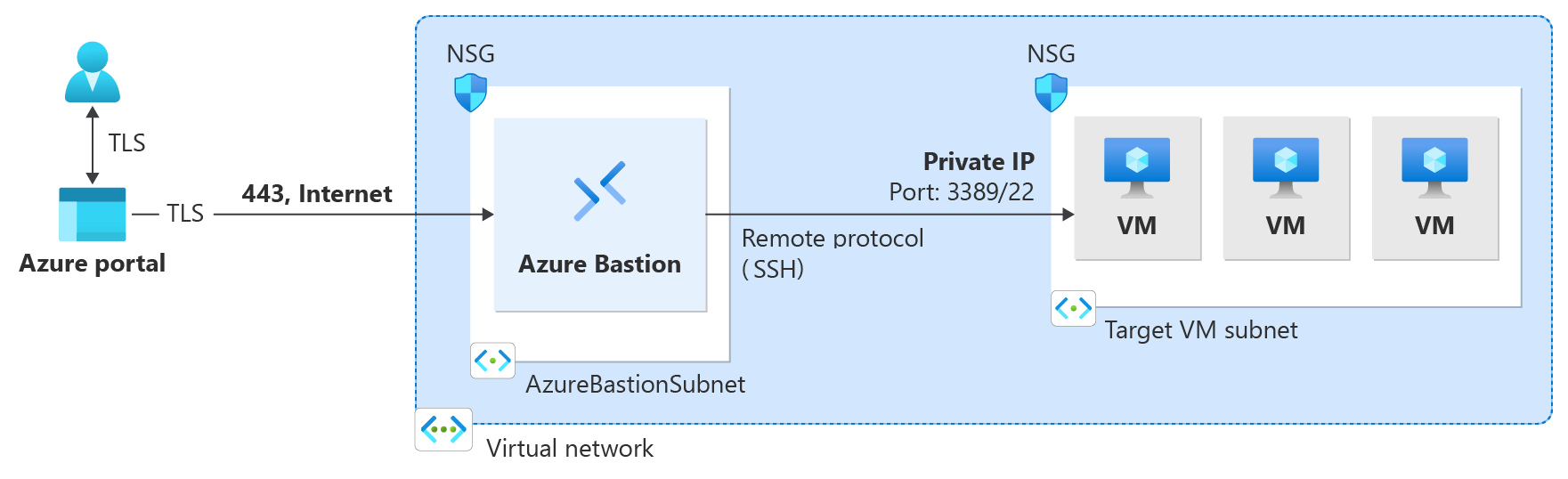
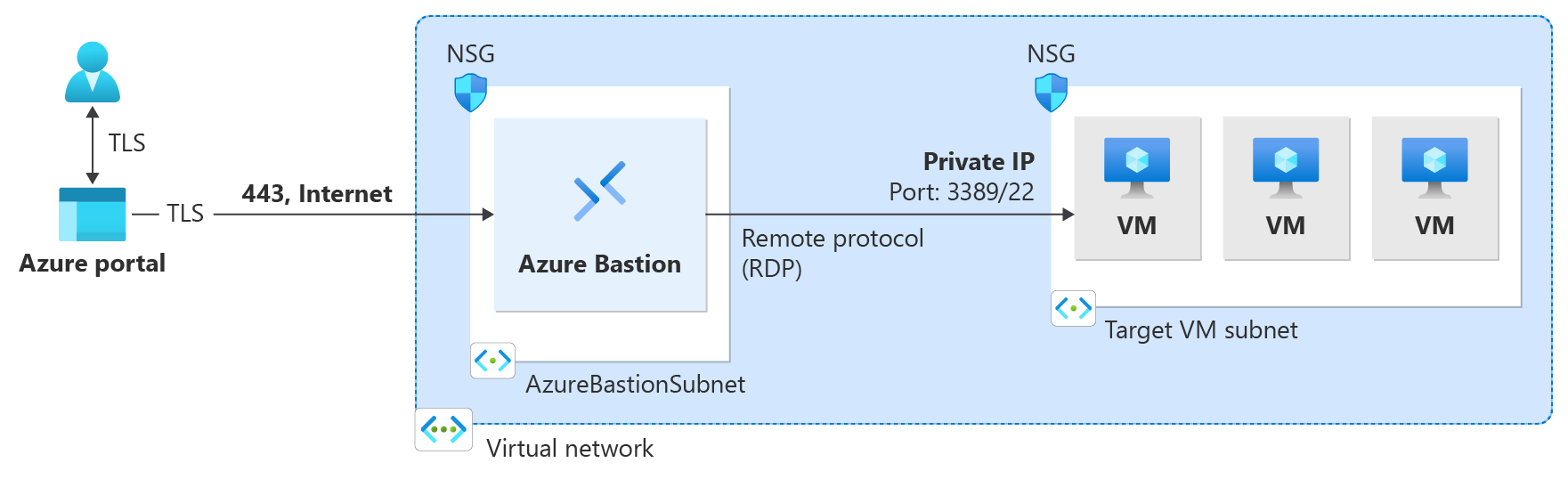
The below are basic architectures show how SSH and RDP work with Azure Bastion
Linux SSH architecture screenshot:
Windows RDP architecture screenshot:
Planned local screenshot placeholders for Crime environment:
TODO: VM Overview > Connect dropdown > Connect via BastionTODO: Bastion pane with protocol/auth selectionsTODO: Browser SSH session tabTODO: Browser RDP session tab
Verification
After selecting Connect, Azure opens a new browser tab with a terminal (SSH) or remote desktop (RDP) session.
- SSH — a terminal prompt appears in the browser. Run
hostnameto confirm the correct VM. - RDP — a Windows desktop loads in the browser tab. Check the machine name in System Properties if needed.
If the tab opens but immediately closes or shows an error, check the Bastion SKU supports your selected protocol and port, and confirm your role assignments.
Troubleshooting
See the Troubleshooting page for role assignment and connection failure steps.
Microsoft also provides troubleshooting guidance for portal connections:
Additional Information
- General SSH use — native CLI path as an alternative.
- SSH Port Forwarding and services — port forward from CLI path.
- Additional guidance via links — full Microsoft connection docs.
This page was last reviewed on 11 June 2026.
It needs to be reviewed again on 11 December 2026
by the page owner platops-build-notices
.
This page was set to be reviewed before 11 December 2026
by the page owner platops-build-notices.
This might mean the content is out of date.