APIM - Trusted Service Connectivity Retirement
Overview
Effective 15 March 2026, Azure API Management is retiring trusted service connectivity by the API Management gateway to supported Azure services - Azure Storage, Key Vault, Key Vault Managed HSM, Service Bus, Event Hubs, and Container Registry.
If your API Management gateway relies on this feature to communicate with these services after 15 March 2026, the communication will fail. Use alternative networking options to securely connect to those services.
Reference: Azure APIM Breaking Changes - Trusted Service Connectivity Retirement
Related Work
We have started working on these changes as part of this epic: DTSPO-29687
Note: This guide is created after knowing all the facts and commands we managed to find after disabling Trusted service connectivity for STE APIM -
spnl-apim-int- Azure Portal Link
Step 1: Check Trusted Connectivity Status
First, check if the trusted connectivity for the APIM gateway is enabled/disabled or unknown.
Set the environment variables:
SUBSCRIPTION_ID="e6b5053b-4c38-4475-a835-a025aeb3d8c7"
RESOURCE_GROUP="rg-spnl-test-01"
APIM_NAME="spnl-apim-int"
API_VERSION="2025-03-01-preview"
Run the GET request:
az rest \
  --method get \
  --uri "https://management.azure.com/subscriptions/$SUBSCRIPTION_ID/resourcegroups/$RESOURCE_GROUP/providers/microsoft.apimanagement/service/$APIM_NAME?api-version=$API_VERSION"
Understanding the Response
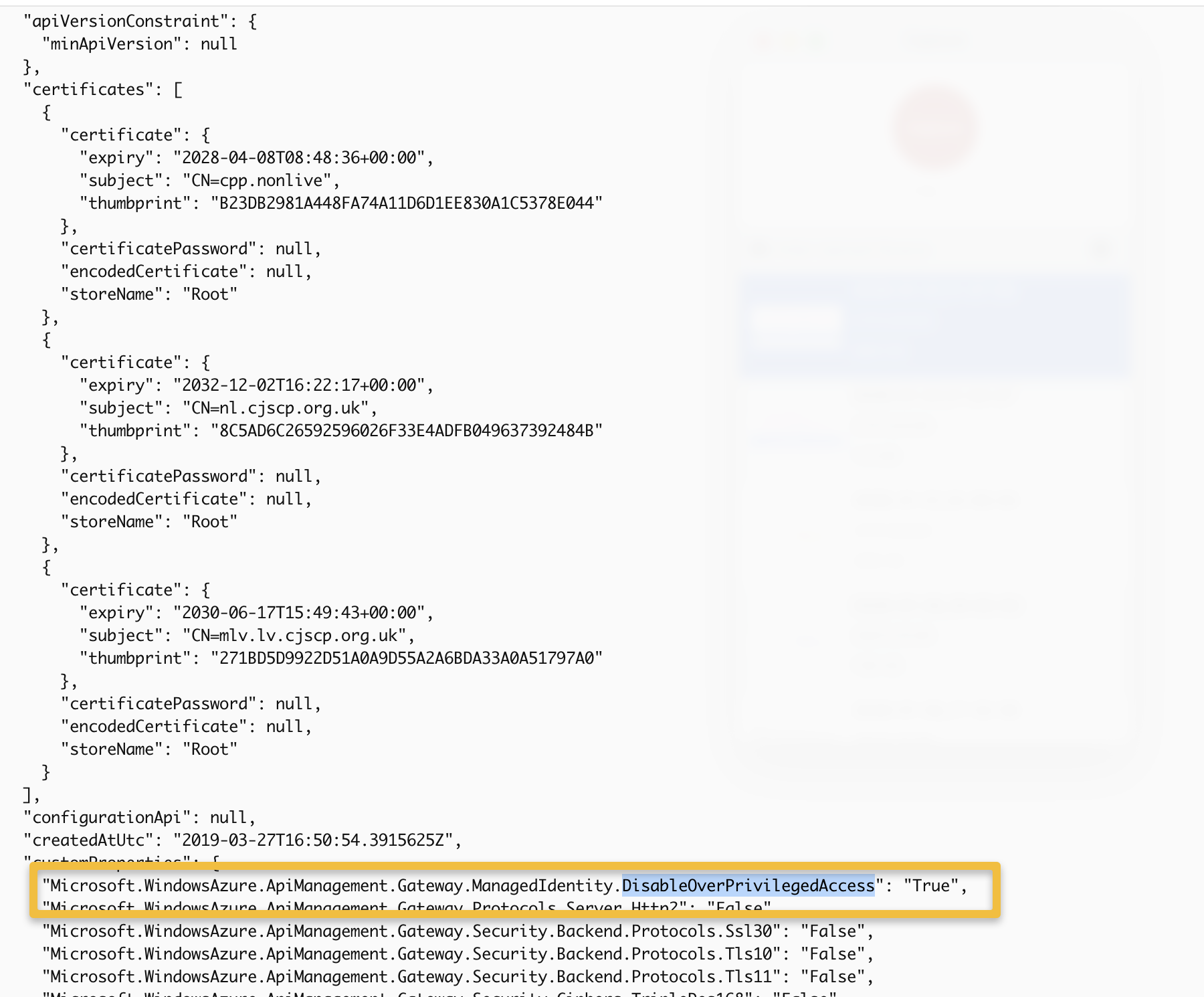
DisableOverPrivilegedAccess Property |
Status |
|---|---|
| TRUE | Already disabled ✅ |
| FALSE | Enabled - needs action |
| Does not exist | May or may not be enabled - needs verification |
See screenshot below from STE, this is the state it should be in:
Step 2: Identify Services Used by APIM
If the property is not set or set to false, we need to see what services the APIM is using. Most likely its using Key Vault or Storage Account.
Search in the repo: https://github.com/hmcts/cpp-azure-api-management in the relevant environment.
Find the API which is using one of the services and see if you can reach that API pre-change and post-change.
Example: Testing API Connectivity (STE Environment)
Below example is for STE. Here, we are making a GET request to one of the APIs hosted on spnl-apim-int which is the STE environment.
OCP_KEY=<Subscription-Key> # Find it on the APIM --> Subscriptions

curl --location 'https://spnl-apim-int-gw.cpp.nonlive/LAA/v1/prosecutionCases?prosecutionCaseReference=CDZY7NN8IE' \
  --header 'Ocp-Apim-Subscription-Key: $OCP_KEY' -k
This API call is using a secret from https://kv-ste-common.vault.azure.net/secrets/LAA and it should return some result back with data.
Step 3: Disable Trusted Connectivity
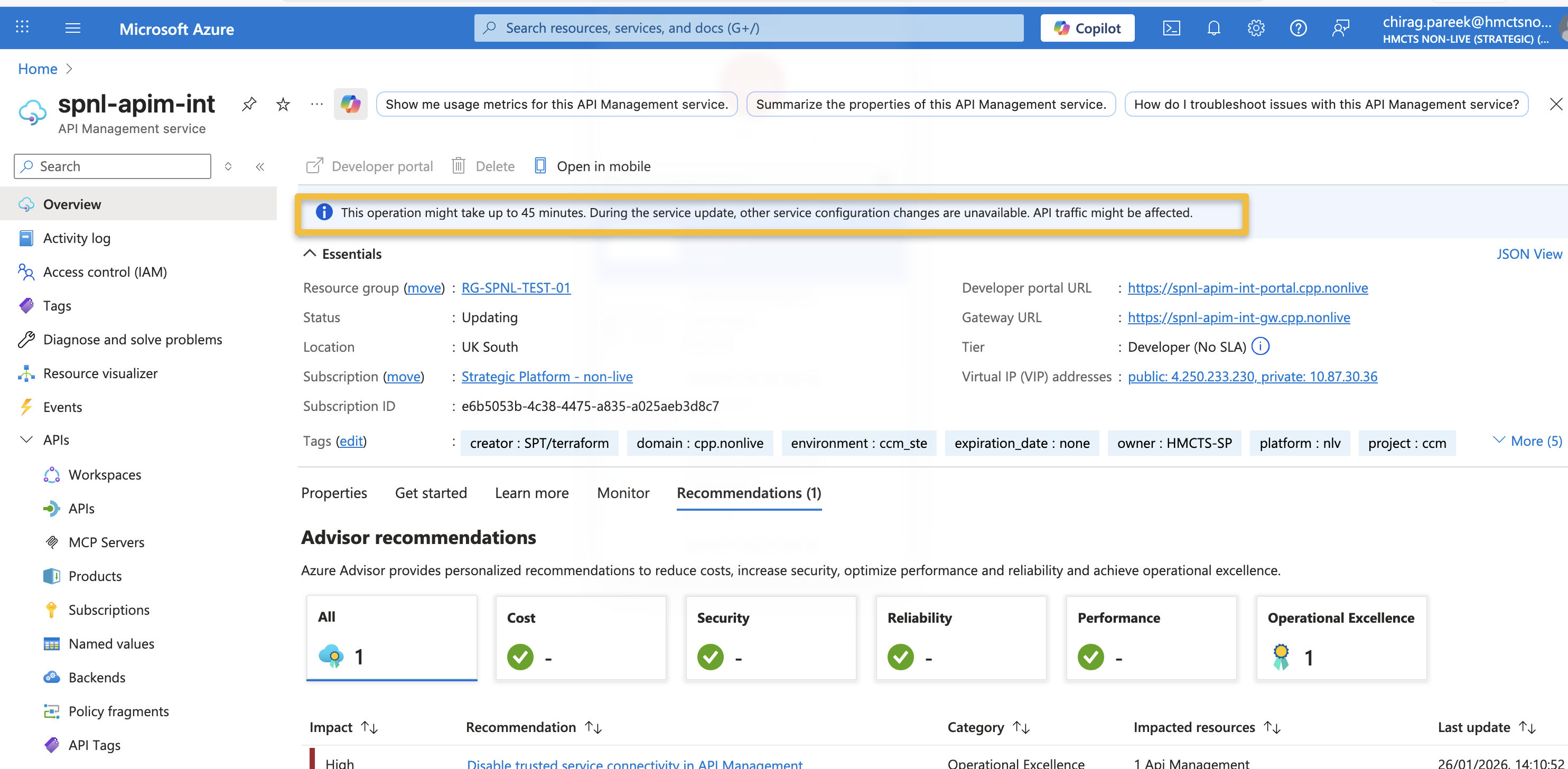
⚠️ WARNING: DOWNTIME EXPECTED
The change below will take up to ** 30 minutes to 1 hour** and the APIM will become unavailable briefly.
Inform stakeholders accordingly before making the change.
Set the environment variables:
SUBSCRIPTION_ID="e6b5053b-4c38-4475-a835-a025aeb3d8c7"
RESOURCE_GROUP="rg-spnl-test-01"
APIM_NAME="spnl-apim-int"
API_VERSION="2025-03-01-preview"
Run the PATCH request to disable trusted connectivity:
az rest \
  --method patch \
  --uri "https://management.azure.com/subscriptions/$SUBSCRIPTION_ID/resourceGroups/$RESOURCE_GROUP/providers/Microsoft.ApiManagement/service/$APIM_NAME?api-version=$API_VERSION" \
  --body '{
    "properties": {
      "customProperties": {
        "Microsoft.WindowsAzure.ApiManagement.Gateway.ManagedIdentity.DisableOverPrivilegedAccess": "True"
      }
    }
  }'
Step 4: Verify the Change
Once the above change is done, confirm with the GET request from Step 1 to verify that the DisableOverPrivilegedAccess property is SET to TRUE.
Step 5: Test API Connectivity
Now check if the same curl request to the API is working or not:
- ✅ If it’s working - We are all good!
- ❌ If it’s not working - We need to fix the connectivity
Step 6: Verify KeyVault Access via Logs
To further confirm that APIM can successfully access the KeyVault after disabling trusted connectivity, you can check the KeyVault diagnostic logs streamed to Event Hub.
Checking KeyVault Logs in Event Hub
- Navigate to the Event Hub associated with your KeyVault diagnostic settings
- Check for
SecretGetoperations from the APIM managed identity - Verify that the requests are successful (HTTP 200 responses)
The screenshot below shows an example of successful KeyVault access logs from APIM after the trusted connectivity was disabled:
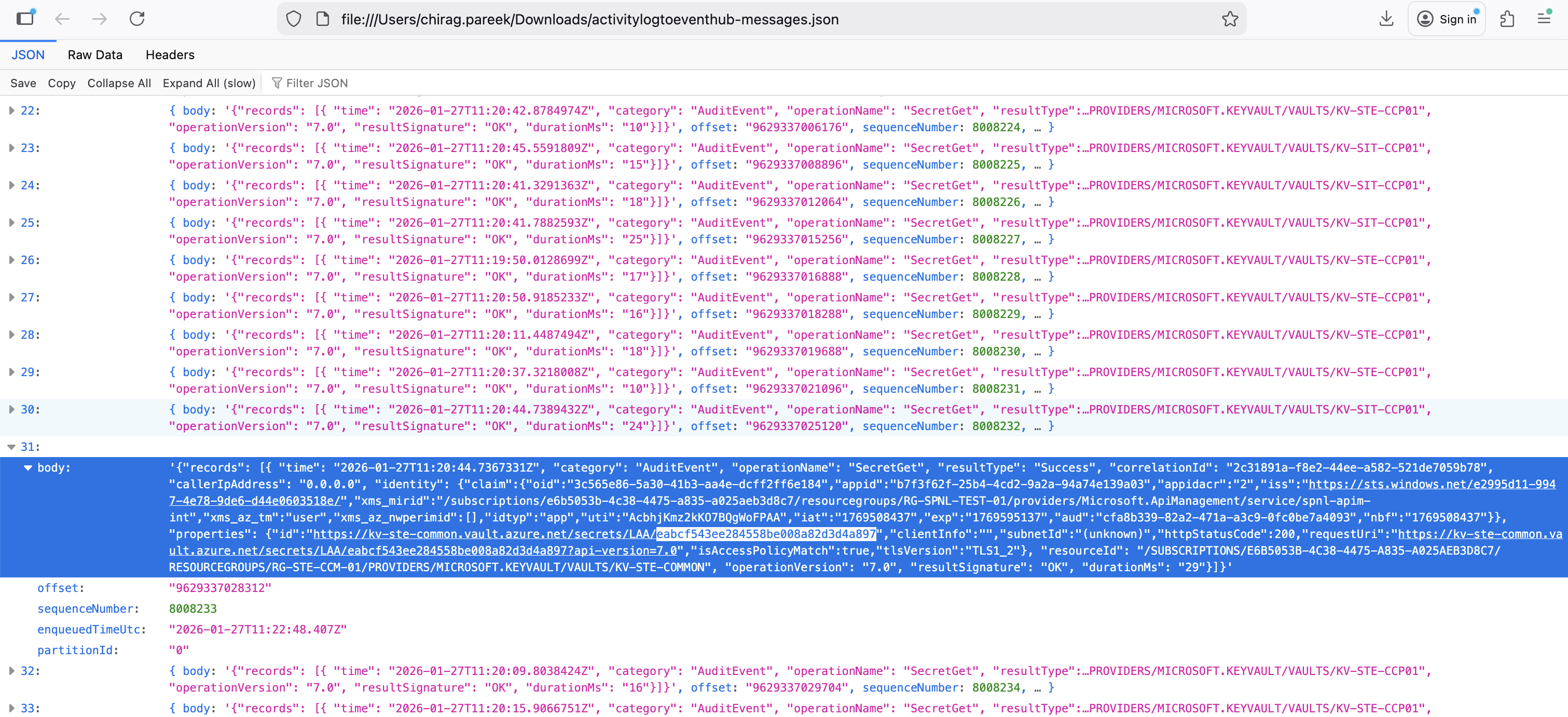
If you see successful SecretGet operations in the logs, it confirms that APIM can still access the KeyVault secrets through the alternative networking configuration (subnet allowlisting or private endpoint).
Troubleshooting: Fixing Connectivity Issues
One way to fix connectivity issues is to add the APIM subnet to the relevant services network to allow the APIM service to access it.
Scenarios
| Service Configuration | Impact | Resolution |
|---|---|---|
| Accepting all public network access | No issue expected | None required |
| Disabled/Restricted public access | APIM cannot connect | Add APIM subnet to service networking OR use private endpoint |
Resolution Options
Add APIM Subnet to Service Networking
- Navigate to the affected service (Key Vault, Storage Account, etc.)
- Go to Networking settings
- Add the APIM subnet to the allowed virtual networks
Use Private Endpoint
- Create a private endpoint for the service
- Ensure APIM can route to the private endpoint