Step 5: Setup Azure Portal
Now you will log into Azure Portal for the first time, set a new password and configure your account with MFA (Multi-Factor Authentication).
Access Azure Portal
- Navigate to https://portal.azure.com/
- Sign in with:
- Azure non-live account: your-email@hmctsnonlive.onmicrosoft.com
- Password: The decrypted password from Step 4
First Login: Reset Password
On first login, Azure will prompt you to reset your password:
- Enter your current password (from Step 4)
- Create a new password
- Confirm the new password
- Click “Update password and sign in”
Set Up Multi-Factor Authentication (MFA)
After password reset, you will be prompted to set up MFA:
- Download Microsoft Authenticator app from your app store
- When prompted in portal, select “Authenticator app”
- Scan the QR code with your app
- Enter the code shown in the app to verify
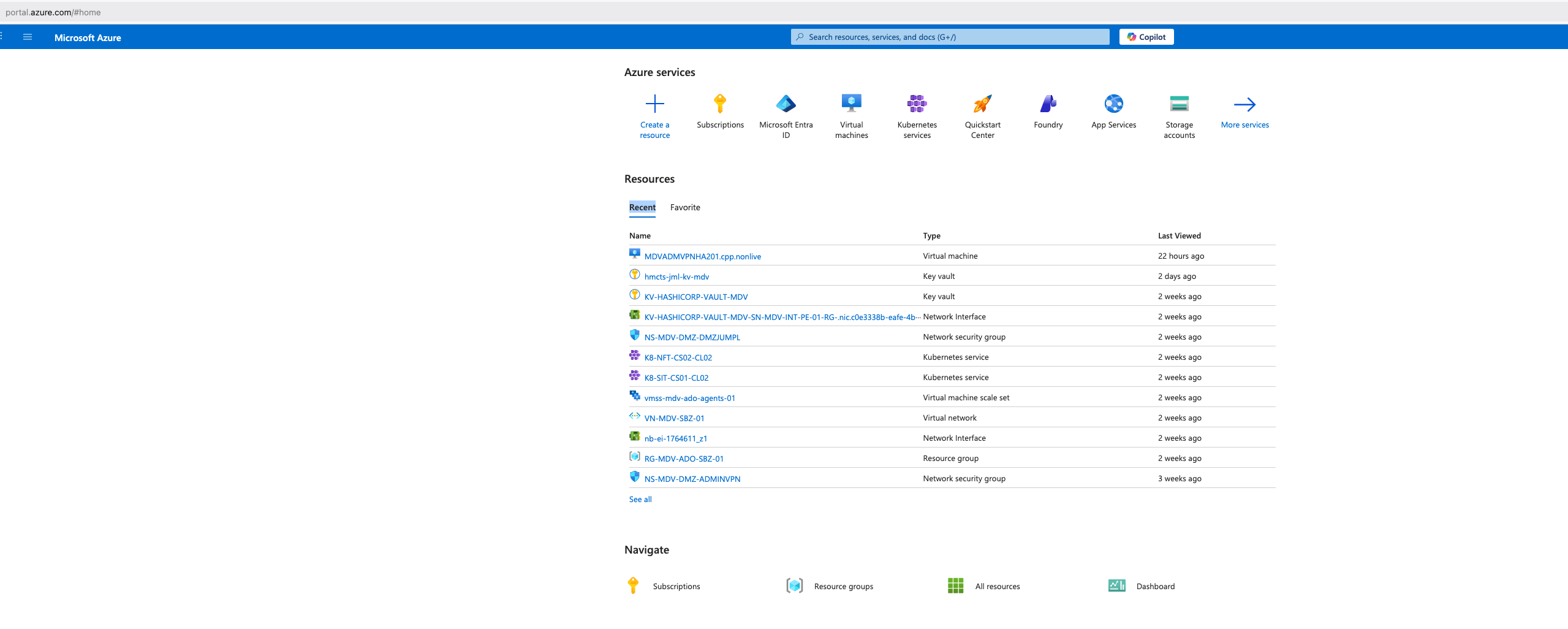
Complete Portal Access
Once MFA is configured, you should have access to Azure Portal.
📋 View screenshot: Successful portal access
Summary Checklist
✓ Reset initial password
✓ Set up MFA
✓ Logged into Azure Portal
✓ Can access dashboard
Next step: Step 6: Obtain VPN and Authenticator secrets
This page was last reviewed on 9 December 2025.
It needs to be reviewed again on 9 June 2026
by the page owner platops-build-notices
.
This page was set to be reviewed before 9 June 2026
by the page owner platops-build-notices.
This might mean the content is out of date.